
Set up marketing pixels in Bizabee
Set up Meta, Google Ads, and GA4 tracking in Bizabee with correct IDs, event mapping, and publish verification.
What marketing pixels are actually for
Pixels connect ad clicks to real business actions on your lead page.
Without pixels, ad platforms can report clicks but cannot reliably optimize for real outcomes like form submissions, calls, or WhatsApp starts.
In Bizabee, pixel scripts are added when your page is published, then conversion events are sent from real CTA clicks and form submissions.
Use pixels for optimization, not only reporting: they help ad platforms find more users likely to complete your chosen action.
- Facebook Pixel: best for Meta ads retargeting and conversion optimization
- Google Ads: best for Google Ads conversion bidding (requires Conversion Label)
- Google Analytics 4: best for analysis, attribution, and custom reporting
Choose the right tracking stack
Do not enable platforms you are not using yet. Keep setup clean so verification is easier.
- Running Meta ads: enable Facebook Pixel
- Running Google Ads: enable Google Ads ID + Conversion Label
- Need funnel analysis: enable GA4
- Running multi-channel campaigns: use all three with consistent event naming
Where to add pixels in Bizabee
Marketing Pixels is a PRO feature in Bizabee. Free plans can open the UI but cannot enable pixel toggles.
If the page was already live, pixel updates still require a new publish to apply to the published version.
If you only click save without republishing, new visitors may not receive updated tracking scripts.
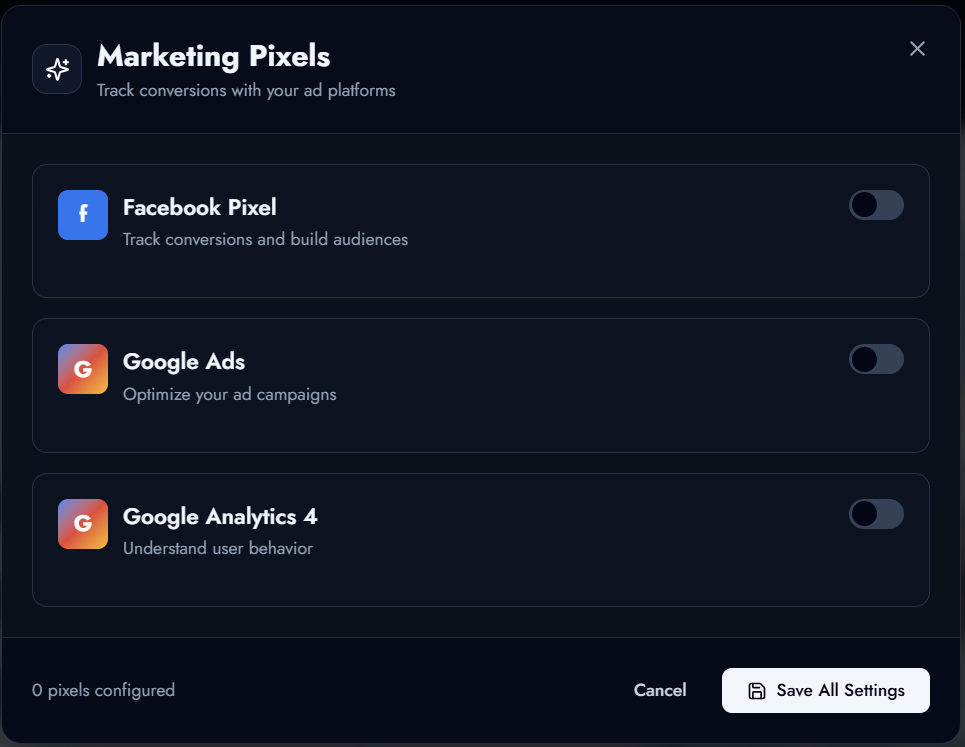
- Open Lead Pages
- Choose your page and click Customize Page
- In the editor toolbar, click Settings (or More Actions -> Tracking Pixels on mobile)
- Enable the platforms you want, paste IDs, then click Save All Settings
- Publish the page again so live traffic gets the updated pixel setup
Where to get each ID
If Bizabee rejects a value, check format first. The app validates each platform ID before saving.
Copy values directly from the platform UI and avoid extra spaces when pasting.
- Facebook Pixel ID: Meta Events Manager -> Data Sources -> copy Pixel ID
1234567890123456 - Google Ads Conversion ID: Google Ads -> Goals -> Conversions -> Tag setup -> copy ID
AW-XXXXXXXXXX - Google Ads Conversion Label: same conversion action -> Tag setup -> Event snippet (example:
AbC-D_efG-h12_34-567) - GA4 Measurement ID: Google Analytics -> Admin -> Data Streams -> Web stream -> ID
G-XXXXXXXXXX
When to use CTA event name vs form event name
Bizabee supports optional custom event names for Google Ads and GA4. Which field matters depends on your CTA type.
Pick one clear primary conversion event per page, then optimize campaigns to that event.
- If your page CTA is Lead Form, set Form Event Name (for submit conversion)
- If your page CTA is Call Now, WhatsApp, or Website Redirect, set CTA Event Name (for click conversion)
- Event names must start with a letter, use letters/numbers/underscore only, and be up to 40 characters (example:
generate_lead)
Common setup mistakes and exact fixes
Most pixel issues are configuration mismatches, not platform outages.
- Events not firing: save settings and republish the page
- Google Ads not optimizing: check both
AW-XXXXXXXXXXand conversion label are filled - Meta shows page views only: verify page CTA/form action was actually triggered
- Wrong event type: use Form Event Name for form pages and CTA Event Name for click CTAs
Quick verification checklist
Run verification immediately after publish. It is easier to fix tracking before campaigns scale.
- Submit one test lead and confirm conversion appears in your ad/analytics platform
- Click your CTA once (Call Now/WhatsApp/Website) and confirm click conversion events
- Use UTM parameters on campaign links so source/medium reporting stays clear
- If events are missing: verify pixel is enabled, IDs are valid, and page was republished after changes