
Generate and schedule social posts (Discover -> Publish -> Live)
Generate posts in Discover, refine text and visuals with AI prompts, then publish with automatic or manual scheduling.
Critical path: use the tabs in this order
Most publishing issues come from skipping a step between generation and scheduling.
In Bizabee, your AI agents can schedule automatically after generation based on your connected channels and queue state.
You can also schedule manually from Publish when you want precise control over date and time.
If you cannot find a post, first confirm which tab it should be in: Discover (ideas), Publish (waiting/scheduled), or Live (already published).
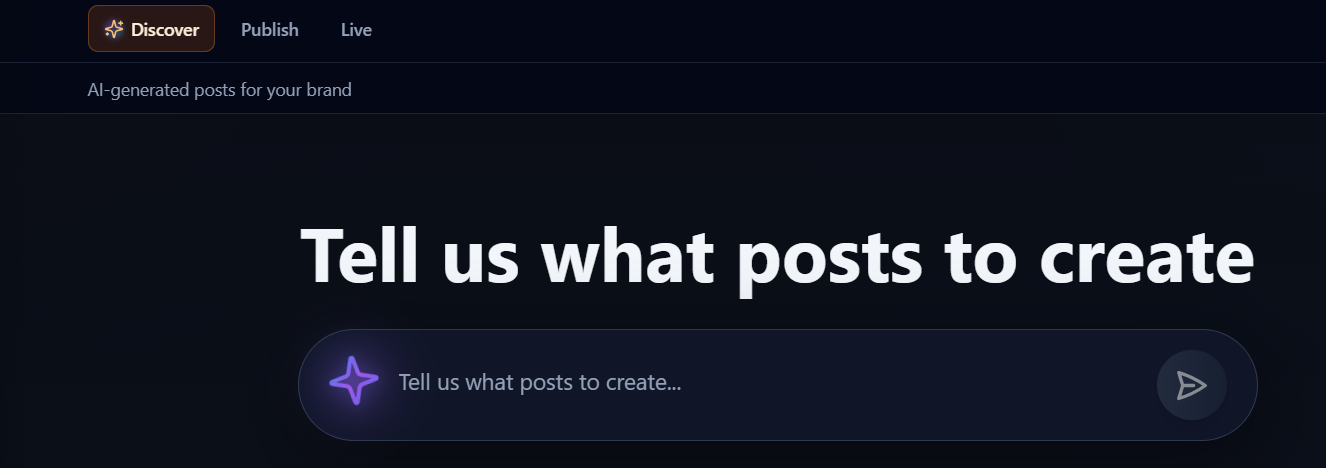
- Open Content and go to Discover
- Generate posts and save the ones you want to publish
- Open Publish and check Waiting
- Schedule posts from Waiting into Next 7 Days
- Open Live to verify published posts
When generated posts do not appear
If generation finishes but you still do not see new cards, refresh Discover and check again before generating another batch.
If a post was dismissed, it may be intentionally removed from the current feed. Generate again only after confirming it was not saved.
One clean generate -> save -> schedule cycle is better than five overlapping generate attempts.
- Confirm you are in Discover, not Publish or Live
- Wait for generation to fully complete, then check the feed again
- If no items appear, refresh the page and retry one prompt
- Avoid running multiple prompt submissions at the same time
Use AI prompts to refine text and images before scheduling
In Discover, use follow-up prompts to improve weak posts before moving them to Publish.
Ask for clearer hooks, stronger CTAs, different tone, or visual direction so each post matches your brand and campaign goal.
- Text prompt examples: "make this caption more direct", "shorten to 2 lines", "add a stronger call to action"
- Image prompt examples: "minimal clean visual", "more contrast", "warmer colors", "show real business context"
- Refine first, then save the best versions to Waiting
When posts are in Waiting but not publishing
Waiting means the post is saved but not scheduled yet. Open the post action and assign date/time so it moves into Next 7 Days.
If automatic scheduling did not place the post, schedule it manually from Waiting.
If scheduling is blocked, check social connection status first. Publish shows a connect warning when no page/account is selected.
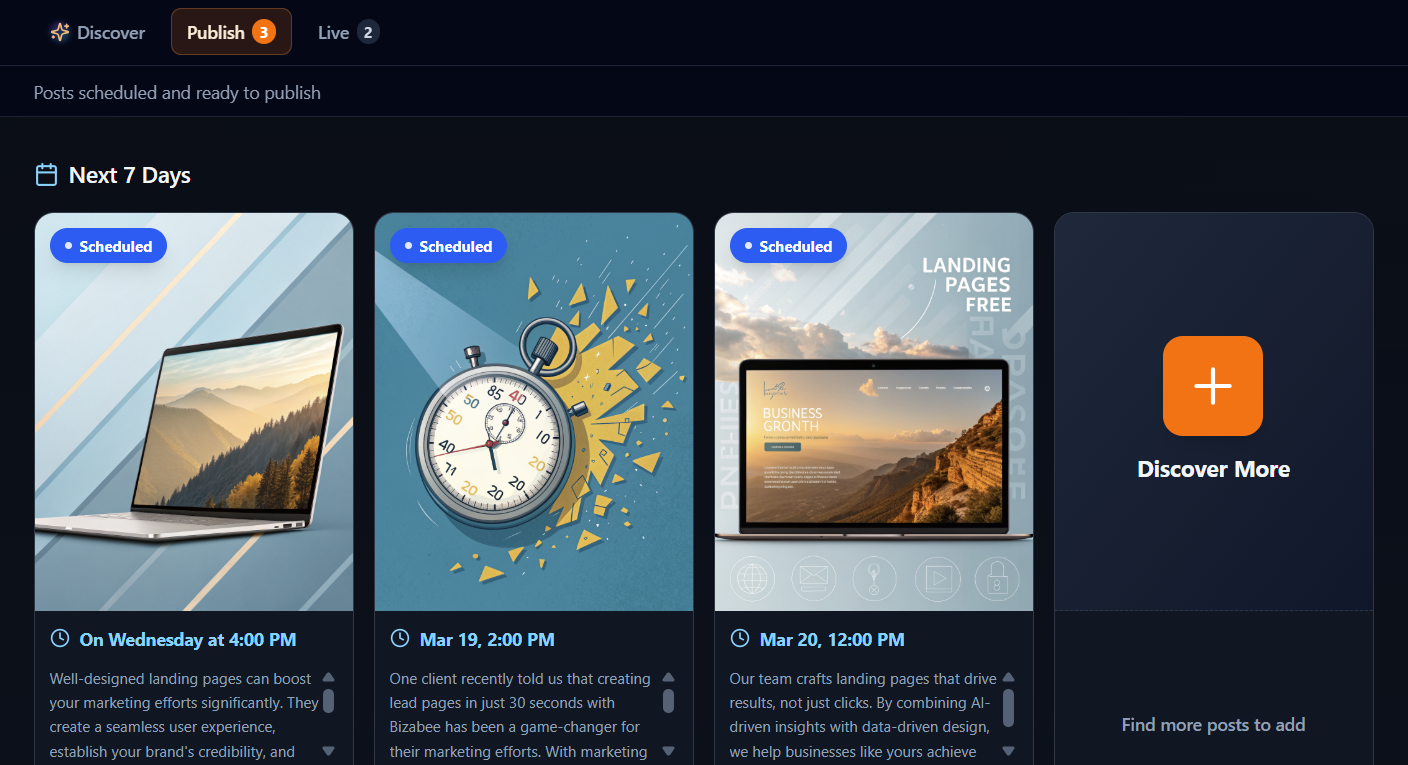
- In Publish, use Waiting for unscheduled saved posts
- Move important posts first into Next 7 Days
- If Connect social warning appears, reconnect before scheduling
- After publish time passes, verify in Live
Quick checks before you open support
- Post not visible: confirm correct tab and refresh once
- Cannot schedule: verify social account/page is connected, then try manual schedule
- Not in Live yet: confirm scheduled time has passed and check Publish queue
- Unexpected order: recheck scheduled times and timezone